
Have you been saving every client, every call and every sales opportunity for months in an Excel sheet that no one fully understands anymore? You are not alone. In fact, it is the most common starting point before making the jump to specialized software. Migrating from Excel to a CRM sounds more complicated than it really is, as long as you follow a clear order so as not to lose a single contact along the way. In this guide we explain, step by step, how to move your data safely, what mistakes to avoid and how to leave your information ready to work from day one. This guide on migrating Excel CRM summarizes the criteria that should be reviewed before choosing.

migrate Excel CRM: criteria and guide
Download the CRM import template
To organize your data before migrating, use this CSV template with regular columns for contacts, companies, opportunities, and follow-ups.
The template does not contain personal data. Make a backup of your original file and validate the mapping with a small import.
Why make the leap from a spreadsheet to a CRM?
Before migrating from Excel to a CRM, it is important to be clear about what you are gaining. This tool, whose full name is Customer Relationship Management, centralizes each customer's history in one place. In addition, it prevents two people on the team from calling the same prospect on the same day, and automatically notifies when an opportunity has been without movement for too long. If you still have doubts about the concept, check out our guide on What is a CRM and what is it for?.
There we calmly explain what exactly this tool is for and how it differs from a traditional spreadsheet. Wikipedia, for its part, offers a Complete technical definition of customer relationship management, useful if you want to delve deeper into the origin of the concept.
Before migrating: audit and clean your Excel file
The quality of migrating from Excel to a CRM depends almost entirely on the quality of the source file. Therefore, before moving your data from Excel to a CRM, it is advisable to spend a full afternoon organizing the sheet. Eliminate empty rows and unify the phone and date formats (the platform will not interpret “02/01/2026” the same as “Feb-1-26”). Additionally, separate the full name into two columns—first name and last name—and check that there are no duplicate contacts with different data. Additionally, add a column with a unique identifier per customer. This way, if something goes wrong during the import, you'll be able to track exactly which record was lost or duplicated.
How to map Excel columns to your CRM fields
Almost no platform uses the same column names as your Excel. Therefore, before completing the migration from Excel to a CRM, it is advisable to map each field carefully. This table summarizes a typical mapping that works for most of these tools in Spanish:
| Column in Excel | Equivalent field in the CRM |
|---|---|
| Full name | First name + Last name (separate) |
| Company | Account / Company |
| Main email | |
| Telephone | Telephone / Mobile |
| Last contact | Recent note or activity |
| Client status | Sales funnel stage |
| Next action | Follow-up task |
Save this mapping in a separate document as it will serve as a reference the next time you need to migrate from Excel to a different CRM, or if your team grows and someone else needs to handle data loading.
How to import your contacts from Excel to any CRM
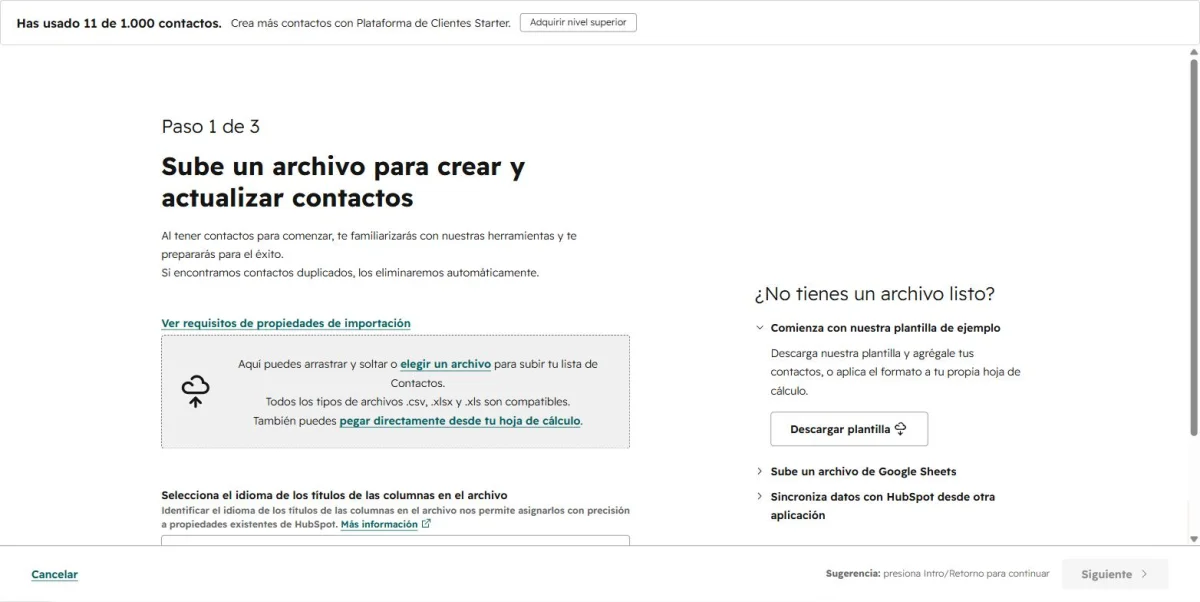
Once your file is clean and mapped, it's time to migrate from Excel to a CRM. Export the sheet as CSV and upload it from the import panel of the tool you have chosen. The process is practically identical no matter which one you use. You upload the file, the system detects the columns automatically, and you confirm or correct the mapping before clicking “import”. Of course, it is worth checking beforehand the limits of the free plan you are trying:
- HubSpot CRM: Free plan for up to 2 users and 1,000 contacts, with no time limit to use it.
- Zoho CRM: Free plan for up to 3 users, with data import from spreadsheets included at no cost.
- Bitrix24: Free plan with 5 GB of storage for all your customer history and attachments.
If your Excel exceeds those limits, don't worry. You can do the migration in batches, importing the active clients first and leaving the history for a second batch. You can also directly evaluate a paid plan from the beginning, if your volume of contacts already justifies it.
Common errors when migrating from Excel to a CRM (and how to avoid them)
- Import without checking duplicates. The same customer with two different emails becomes two separate records, and your team ends up calling them twice.
- Put everything in a single “notes” field. If the entire history of the customer relationship is left in a paragraph of free text, you lose the ability to filter or automate anything.
- Do not test with a small sample. Importing thousands of contacts at once, without first trying twenty, multiplies any formatting errors.
- Forgetting to back up the original Excel. Even if the system confirms the import, keep the original file for at least 30 days in case you need to compare something.
- Do not notify the team of the change. If someone keeps updating the Excel sheet in parallel, in a week you will have two different sources of truth.
After migrating: verify that you haven't lost anything
With the data already in the platform, compare the total number of rows in your original Excel against the number of contacts that appear in the system. If they do not match, check to see if any rows were discarded due to having empty or misspelled mail, as this is the most common reason for rejection. Then, randomly choose ten records and open them one by one to confirm that the customer's phone, company, and status arrived complete. Finally, define with your team an exact date from which Excel stops updating and this tool becomes the only source of truth.
CRM for freelancers or for the entire team?
If you're working alone and wondering if all this effort is worth it, check out our analysis of whether Is a CRM for freelancers worth it or overkill?. There we explain when it makes sense to take the step and when a simpler alternative is enough. On the other hand, if you already have a growing sales team, check out our guide for choose a CRM according to the size of your company. There we compare options so that you don't commit to a tool that falls short in a few months.
Frequently asked questions about migrating from Excel to a CRM
To complement this guide, you can try Free CRM for SMEs and compare the workflow with your current process.
Yes. Most of the free tools we mention on this site include importing from CSV files at no additional cost, although the number of contacts or users on the free plan does have a limit.
The system itself usually detects email matches during import; Even so, it is safer to clean them first in the original Excel.
For a well-organized database of less than 500 contacts, the entire cleaning, mapping, and import process typically takes between two and four hours of work.
Yes, almost all of these platforms allow you to export your data back to an Excel or CSV file at any time.
Migrate from Excel to a CRM: in summary
Migrating from Excel to a CRM does not require advanced technical knowledge, just order. Clean your file before uploading anything, map each column to its corresponding field, do a small test before importing the entire history, and verify the results at the end. Follow these steps and, in a couple of hours, you will have your customer information organized and accessible to the entire team. Plus, it will be ready to grow, without the fragility of a file that anyone can accidentally delete. In the next guides we will continue exploring how to get more out of this tool once your data is already inside.